MobileNest
Maxonar VR Charging Link Cable 16FT – Charge While Playing PC VR USB 3.0 Stable Data Built to Replace Meta Link Cable for Quest 3S / Quest 3 / Quest 2 / Pico 4 Black
Maxonar VR Charging Link Cable 16FT – Charge While Playing PC VR USB 3.0 Stable Data Built to Replace Meta Link Cable for Quest 3S / Quest 3 / Quest 2 / Pico 4 Black
Couldn't load pickup availability
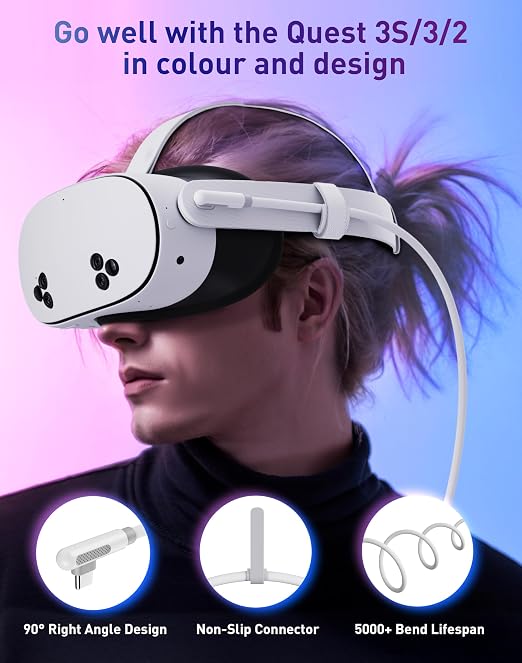
- 【Balanced Charging + Data = Safer Battery Over Time】Smart charging that follows Quest’s own rules. Built-in SmartProtect 3.0 and a 3th-gen safety chip dynamically balance power and data. → Charging automatically reduces above ~65% battery to limit heat and extend battery lifespan → Re-plugging enables fast charging again when the battery is low - 【Play & Charge Continuously, Extend Gameplay by 200%+】Features an intelligent charging chip that maintains your headset's battery level during intense sessions in games like Half-Life: Alyx or Beat Saber. User-verified to support nearly 3 hours of continuous play while keeping charge above 75%, completely breaking the 1-2 hour limit of the native battery. Say goodbye to immersion-breaking low-power warnings - 【Unlocks PC VR & SteamVR With Stable Recognition】Turns your standalone headset into a PC VR system. Connect Meta Quest 3S / 3 / 2 or Pico 4 to your gaming PC for access to SteamVR and PC-exclusive titles with higher graphics and frame rates. → Plug-and-play on USB 3.0 / 3.1 / 3.2 ports → If recognized as USB 2.0, updating headset firmware and PC Link software resolves most cases - 【16FT Freedom, Built for Movement ? and Built to Last】Move naturally without staying close to your PC. The 16-foot length gives room-scale freedom that shorter cables can’t. → Reinforced L-shaped USB-C connector reduces port stress → Thick, durable jacket resists wear → Anti-slip design + Velcro strap help maintain a stable connection during active gameplay → White finish visually matches Quest 3S / 3 for a first-party look - 【Clear Boundaries to Ensure Your Satisfaction】This is not a standard charging cable. It is NOT compatible with older PCs featuring only USB 2.0 ports nor intended for non-VR devices. It is also not for users seeking a purely wireless experience. This is the solution for wired VR gamers who want the best visual fidelity and unlimited playtime on PC. If you have a compatible PC and VR headset, and value premium length, reliable charging, and outstanding value, this is your cable. Backed by a 36-month warranty for total confidence
Product description
How to resolve the issue of the VR device being recognized as USB 2.0?
What should I do if I can't enable Quest Link?
What should I do if my computer shows "Device Not Recognized" when trying to connect the VR?
What should I do if my computer gives no response when trying to connect the VR?
To achieve the best charging speed, please follow these guidelines
How to resolve the issue of the VR device being recognized as USB 2.0?
1: Try different USB 3.0/3.1 ports and avoid using hubs or adapters.
2: Restart the VR device and close the relevant software on your computer.
3: Update both the VR device and the software on your computer to the latest versions.
What should I do if I can't enable Quest Link?
1: Turn off the Air Link wireless connection before enabling Quest Link.
2: Please be patient, as the Quest Link interface may take 1-2 minutes to appear.
3: Update the VR device and software, then restart both the computer and the VR device
What should I do if my computer shows "Device Not Recognized" when trying to connect the VR?
1: Update graphics card drivers and USB drivers to the latest versions
2: Plug the USB cable into the computer first, then restart the VR device; the computer should recognize it
3: Test the VR device on another computer to see if it works properl
What should I do if my computer gives no response when trying to connect the VR?
1: Ensure that graphics card and computer meet the requirements for a wired VR connection
2: Restart both the VR device and the computer, then try reconnecting
3: Test the VR device on another computer
4: Check if the USB ports are working properly
To achieve the best charging speed, please follow these guidelines
1.Use the original Oculus wall charger or a higher-wattage charger.
2.Avoid using extension cords with our VR connection cable.
3.It is not recommended to charge other devices, such as phones, tablets, or laptops, at the same time
Share